Using Prior Auth
Getting started
Prior Auth is invite-only. This page covers accepting an invitation, signing in, and finding your way around the dashboard.
Before you start
Every account belongs to at least one practice. What you can see and do depends on your role: owner, admin, provider or staff. Team and roles lists the differences.
Accepting an invitation
There is no public sign-up. An owner or admin invites you from the Team page, choosing your role.
- Open the invitation email. The link works for 14 days.
- The link opens a page with a button. Click Continue. The extra click is deliberate: it stops email security scanners that pre-open links from using up your single-use link.
- On the welcome page, confirm your name and choose a password: at least 12 characters, with upper- and lowercase letters and a number.
- You land on the dashboard.
If the link says it is invalid or expired, ask the person who invited you to send a new invitation. A used link can't be used again.
Signing in
Go to Sign in and use either method:
- Email and password, then Sign in.
- Send sign-in link: we email you a single-use link, and you don't need the password. Click the button on the page it opens.
If you belong to more than one practice, the practice name in the top bar opens a menu to switch between them. Signing out is in the menu on your initials.
The dashboard
Authorizations lists your practice's requests in three tabs, each with a count: Open (needs your team), Submitted (waiting on a payer) and Resolved (finished). New request starts the wizard.
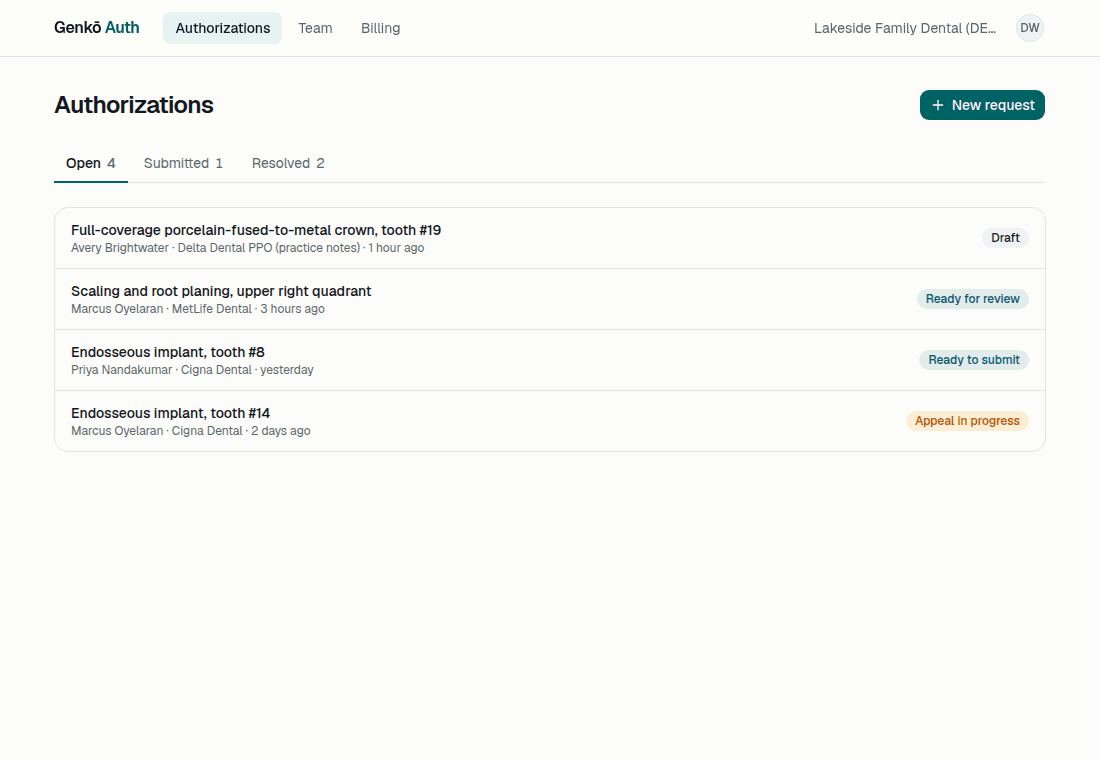
Request statuses
A request moves through these statuses. Only the moves in the last column are possible, and the app offers just those.
| Status | Tab | Meaning | Next |
|---|---|---|---|
| Draft | Open | Being prepared. Context can be edited, a packet can be generated. | Ready for review, Withdrawn |
| Ready for review | Open | The draft is done and waiting for a final check. | Ready to submit (lock), back to Draft, Withdrawn |
| Ready to submit | Open | The packet is locked. Download the PDF and send it to the payer. | Submitted, Withdrawn |
| Submitted | Submitted | Sent to the payer; waiting for a decision. | Approved, Partially approved, Denied, Withdrawn |
| Approved | Resolved | The payer authorized the request. | Closed |
| Partially approved | Resolved | Some of it was authorized. | Appeal in progress, Closed |
| Denied | Resolved | The payer declined. | Appeal in progress, Closed |
| Appeal in progress | Open | Preparing an appeal. | Appeal submitted, Withdrawn |
| Appeal submitted | Submitted | Appeal sent; waiting for a decision. | Approved, Partially approved, Denied, Withdrawn |
| Closed | Resolved | Finished. Read-only. | None |
| Withdrawn | Resolved | No longer pursued. Read-only. | None |
The request page
Opening a request shows its details, a What's next panel with the one action that fits the current status, the packet, the clinical context and a timeline of everything that happened.